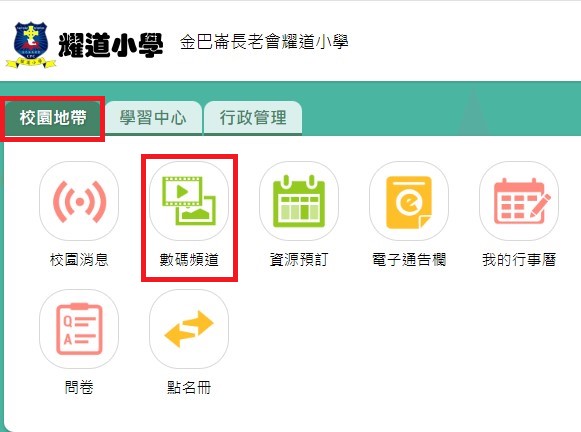
Users can view videos by navigating to [Campus Zone] > [Digital Channel].
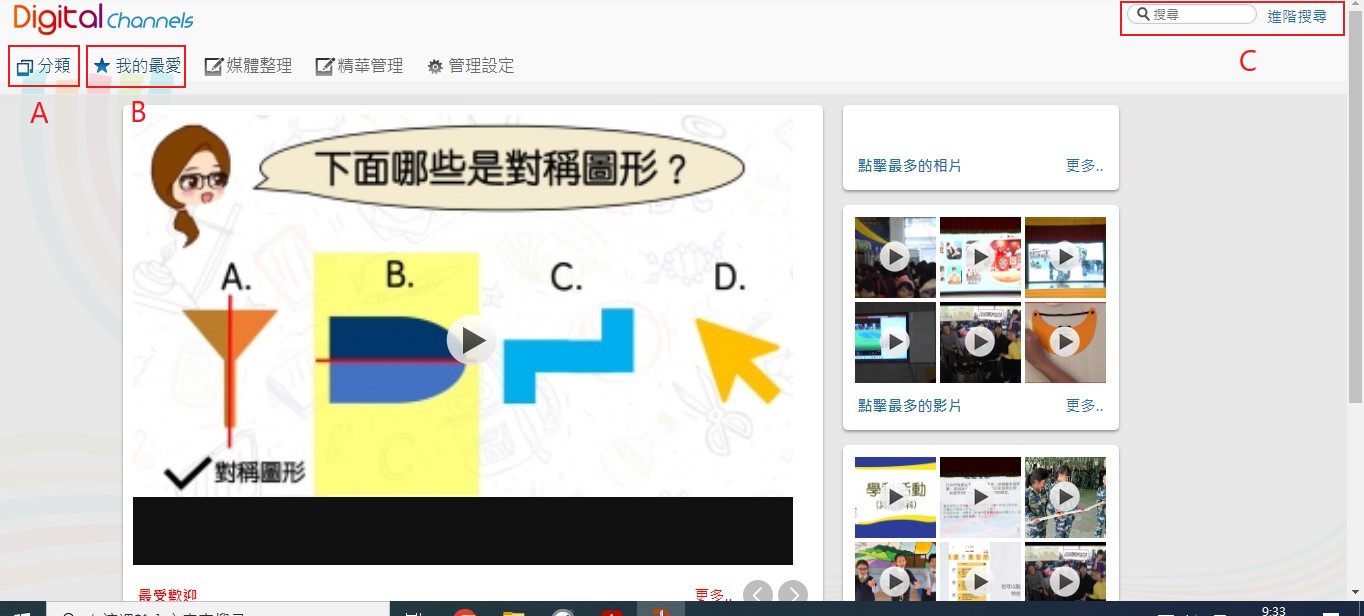
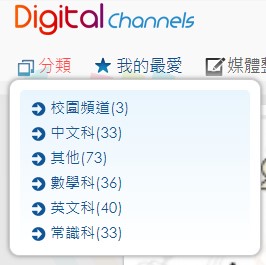
A. Categories: You can browse and select albums by category.
B. My Favourites: Videos marked with a [Star icon] will be saved to [My Favourites] for easy retrieval of the media.

C. Search: Search for specific album names or keywords.

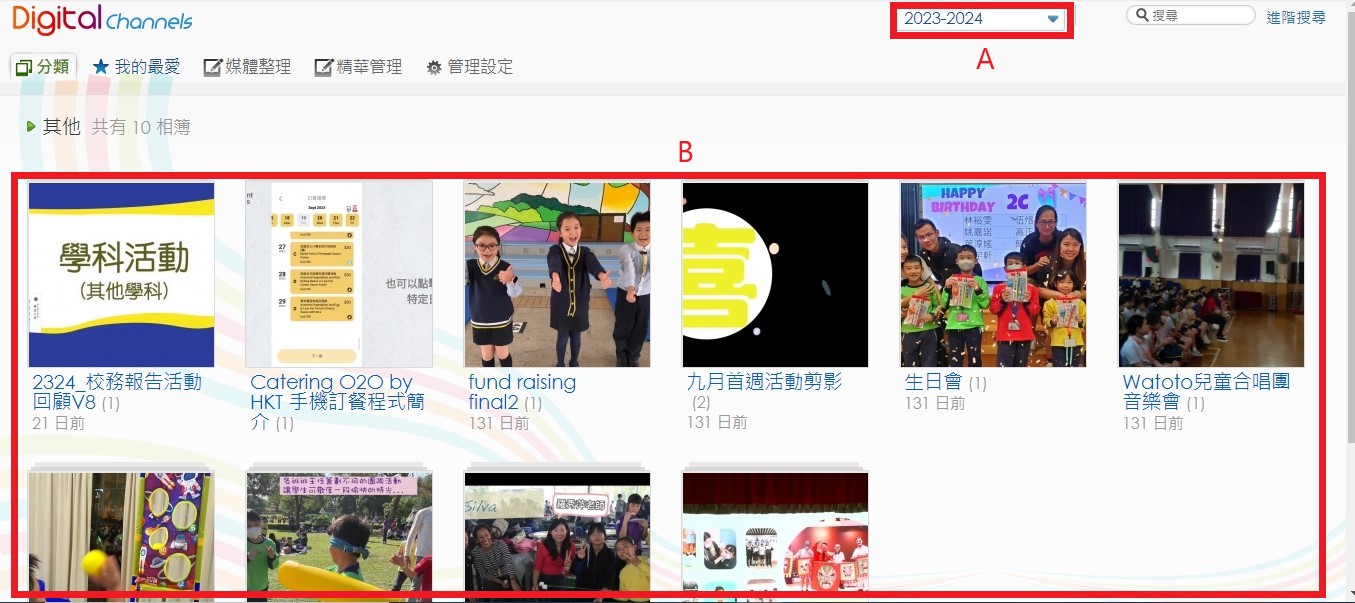
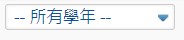
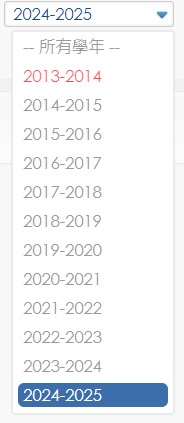
A. Select the Academic Year.
B. Select the Album.
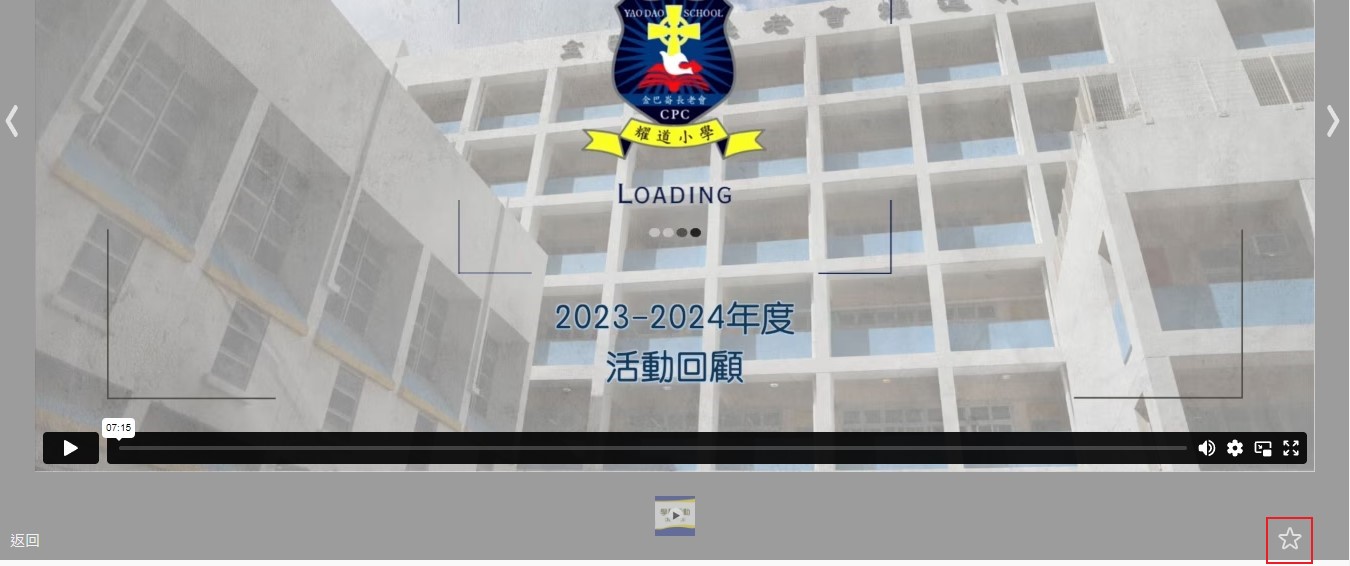
Click the Star icon to add the video to your [My Favourites] list.
Users can access the [Digital Channel] through the corresponding eClass Apps. You can also mark media as favorites. Media marked as favorites will be saved under [My Favourites] on the Digital Channel homepage.
The following guide uses the eClass Parent App as an example:
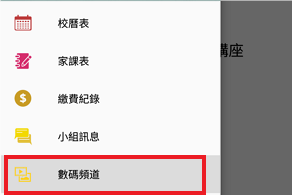
Step 1: In the menu, select [Digital Channel].
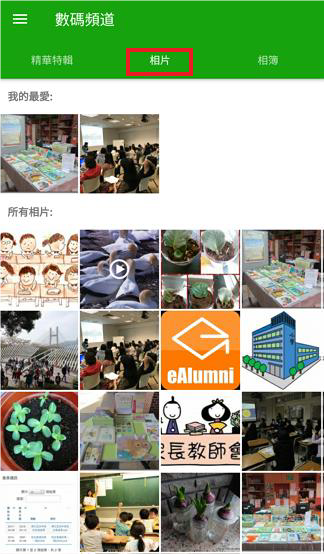
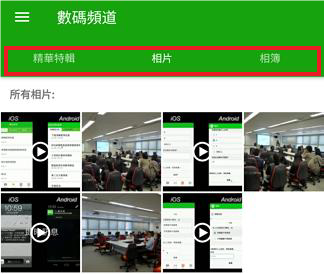
Step 2: The Digital Channel homepage is divided into [Highlights], [Photos], and [Albums].
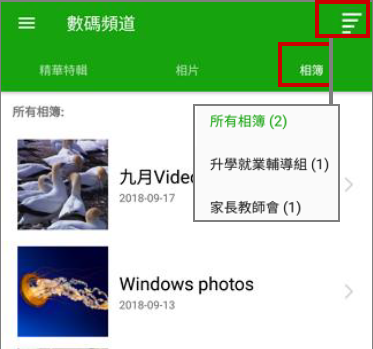
Step 3: [Albums] displays the categories of photos and videos from over the years, along with the number of albums available in each category.
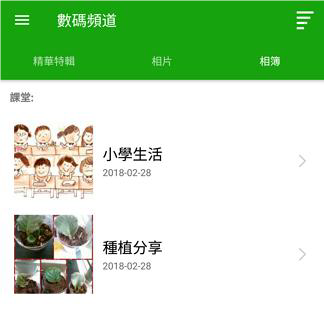
Step 4: Tap to enter an individual album.
Step 5: Viewers can mark specific media files as favorites.

Step 6: Media marked as a favorite will be conveniently saved under [My Favourites] on the Digital Channel homepage.