
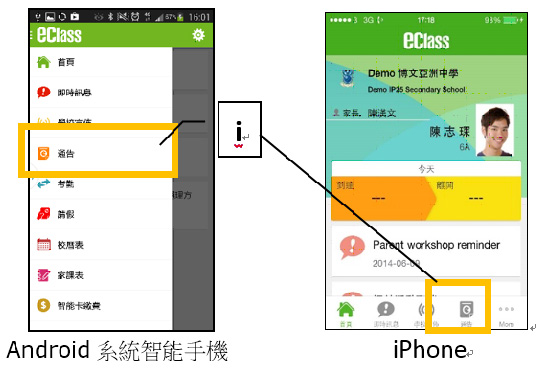
1. Viewing eNotices
 to enter the page and browse the notice titles.
|
|
 |
 |
|
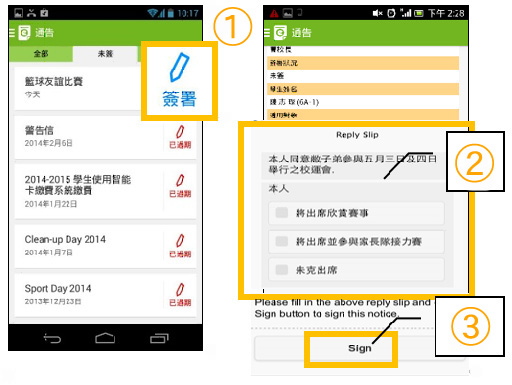
2. Signing eNotices Step 1: Tap the "Sign" button Step 2: Fill out the reply slip. (Example: If the notice contains multiple-choice questions, parents simply need to select the appropriate options to answer.) Step 3: Tap "Confirm
|
 |
|
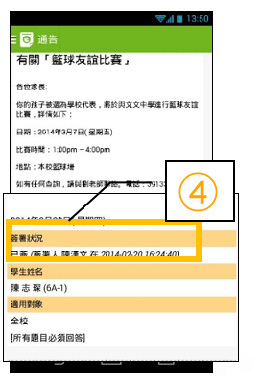
Step 4: After confirming the signature, the status will change to "Signed", and the reply slip will display your submitted response. |
 |
|
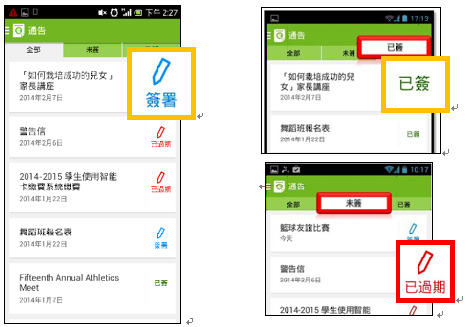
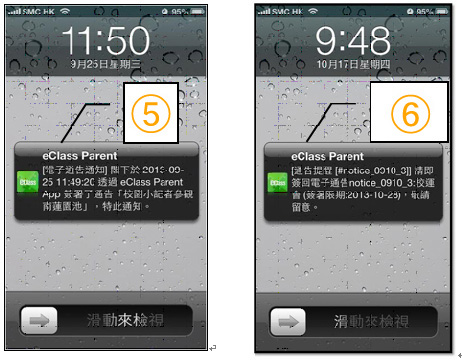
Step 5: At the same time, the system will send a Push Message to confirm that the notice has been successfully signed and submitted. Step 6: Return to the main "Notices" page. Successfully signed notices will be marked with a specific icon. Parents can also review these notices at any time under the "Signed" Note: Class teachers may occasionally send Push Messages to remind parents to sign pending notices. |
 |
 to open the relevant notice.
 ". (Note: If identity verification is required, parents will be prompted to re-enter their parent account password before confirming.)
 tab.
tab.