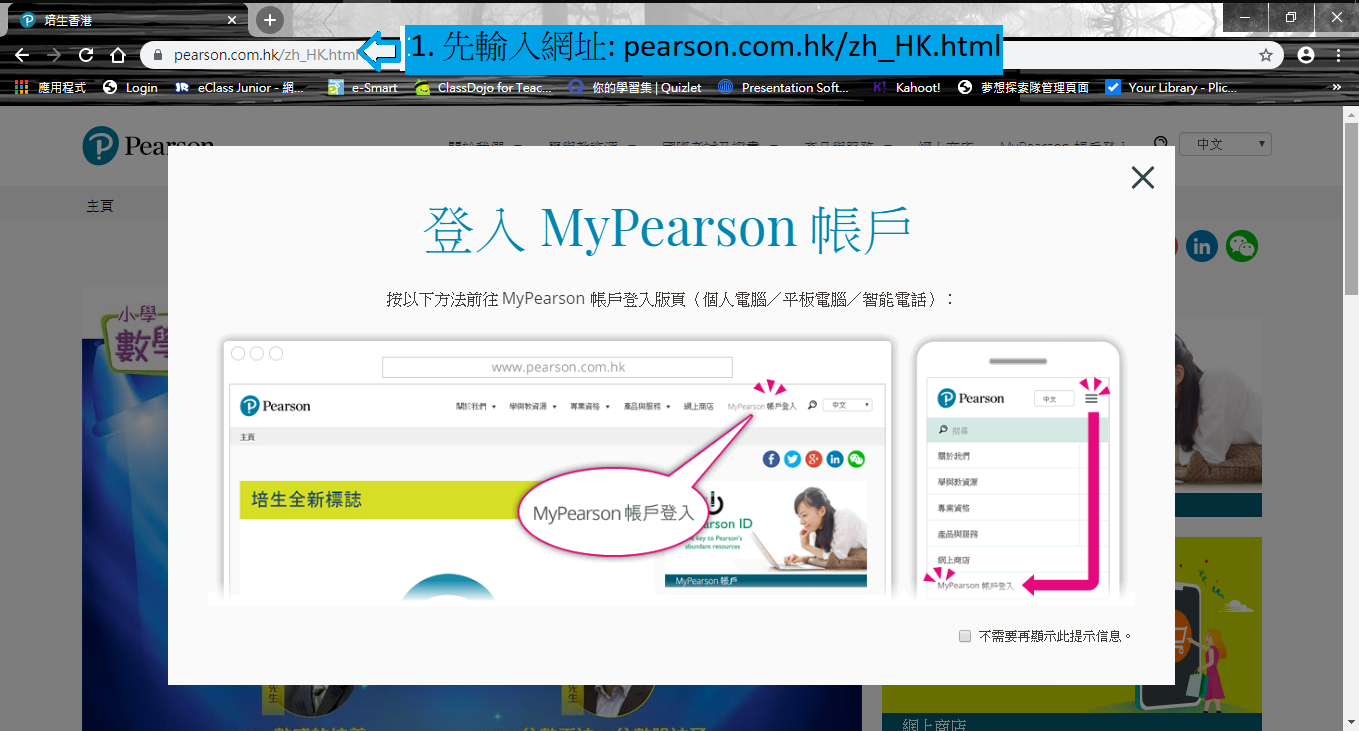
1. Go to the website:https://www.pearson.com.hk/zh_HK.html
2. Log in to your account.
(Note: Please refer to the IT Memo page in the Student Handbook for the Pearson English e-Book login details.)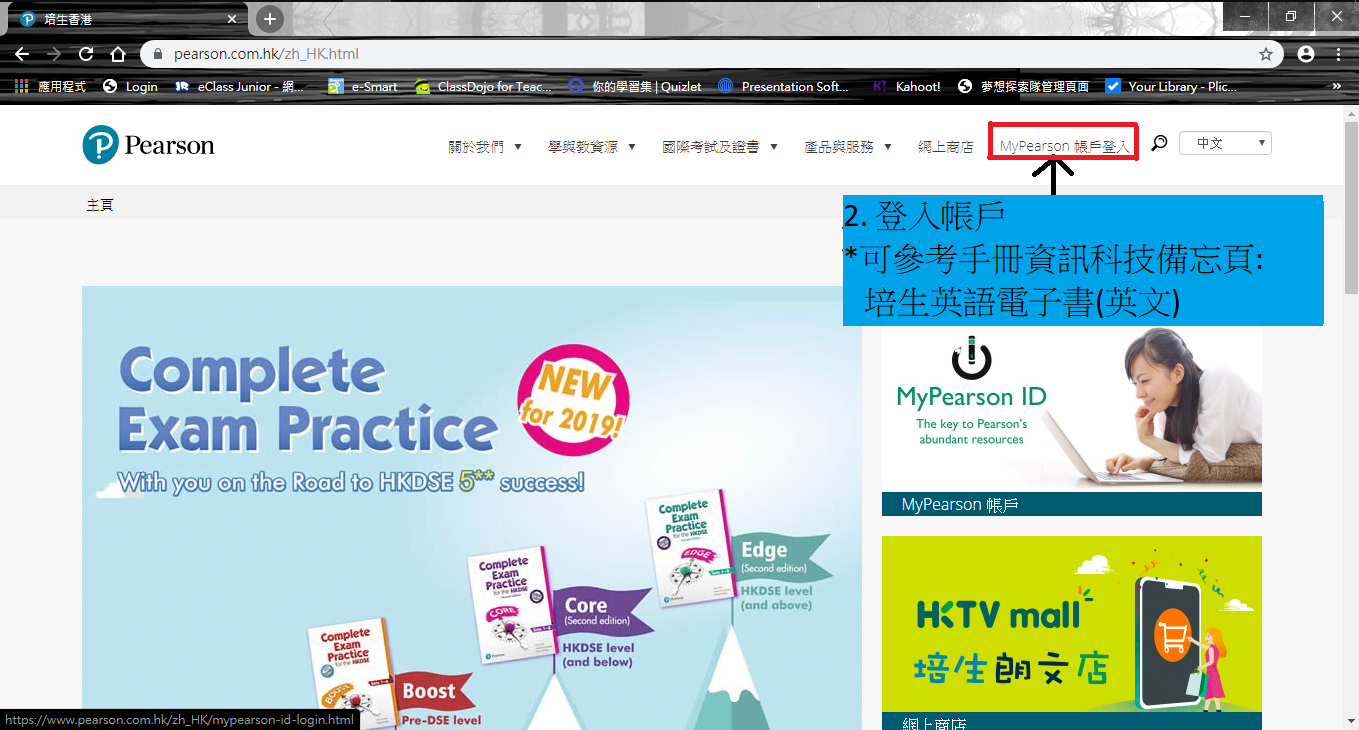
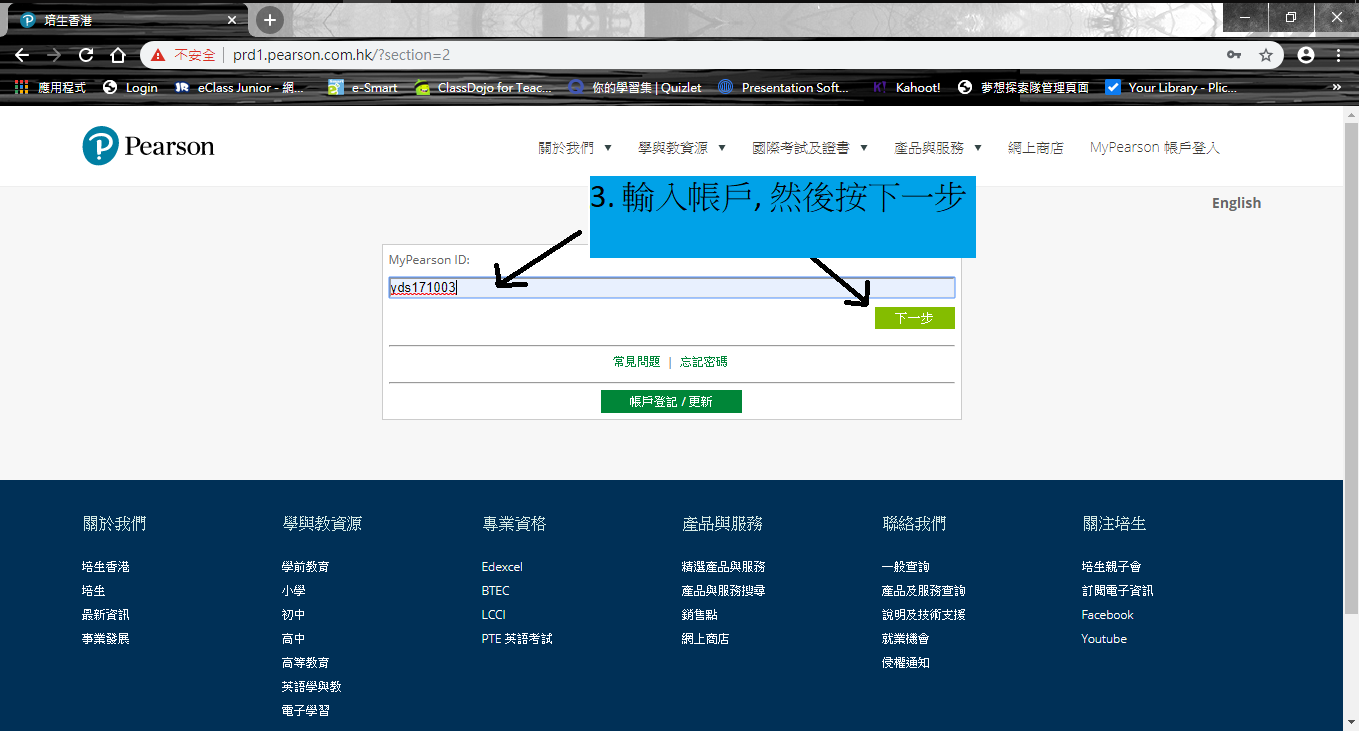
3. Enter your username, then click "Next".
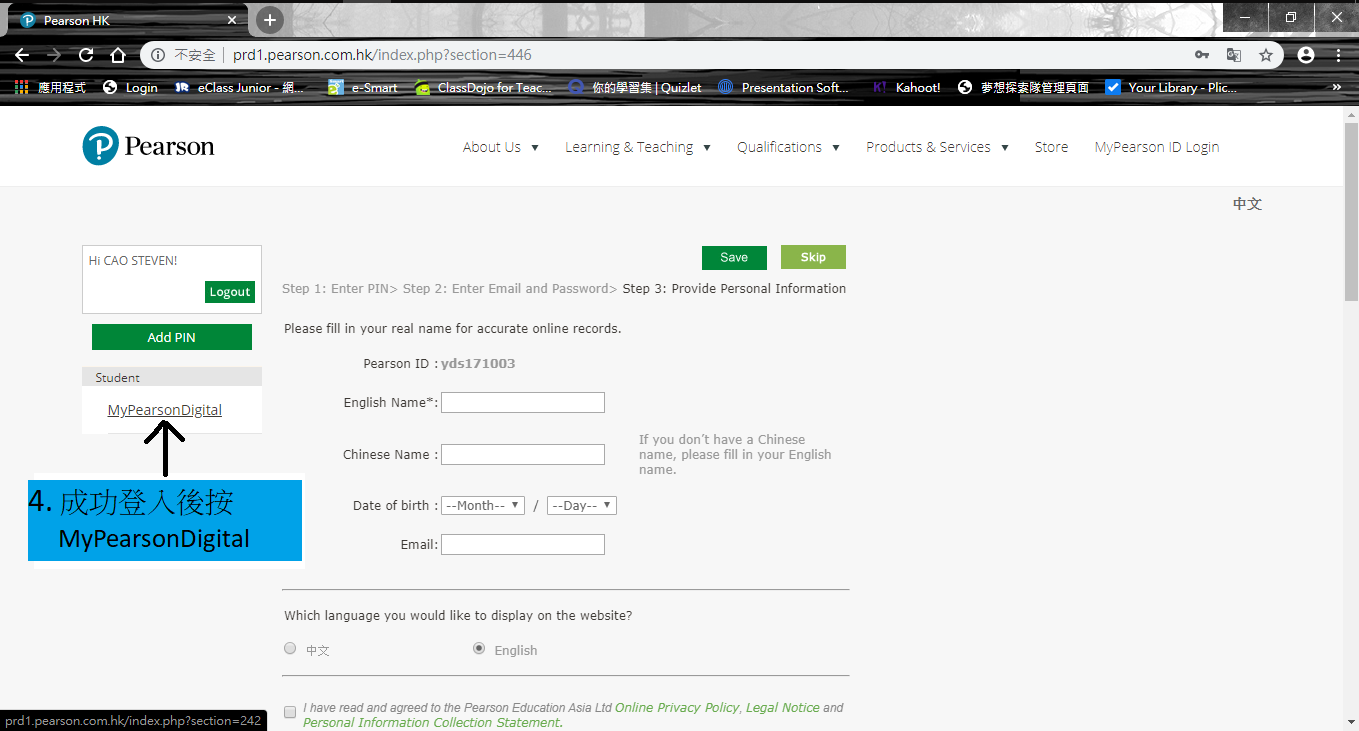
4. After logging in successfully, click "MyPearsonDigital".
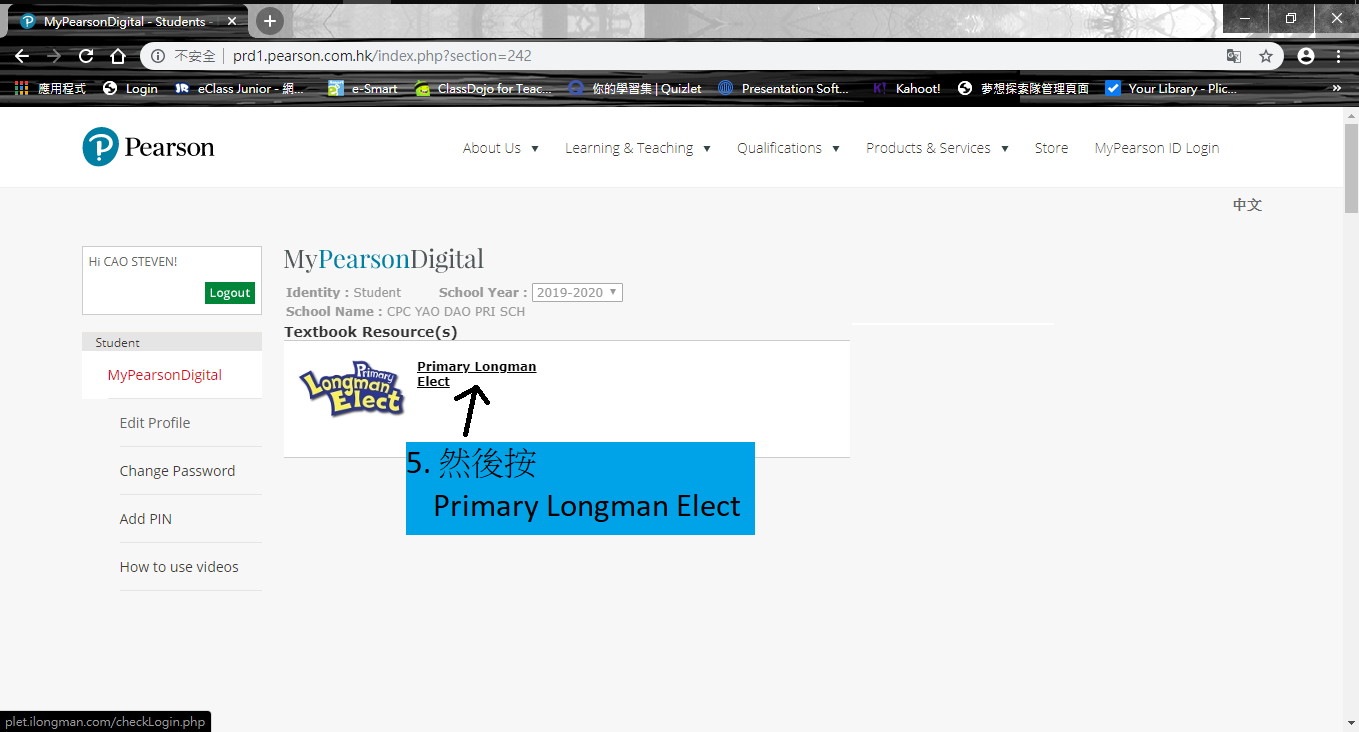
5. Click "Primary Longman Elect".
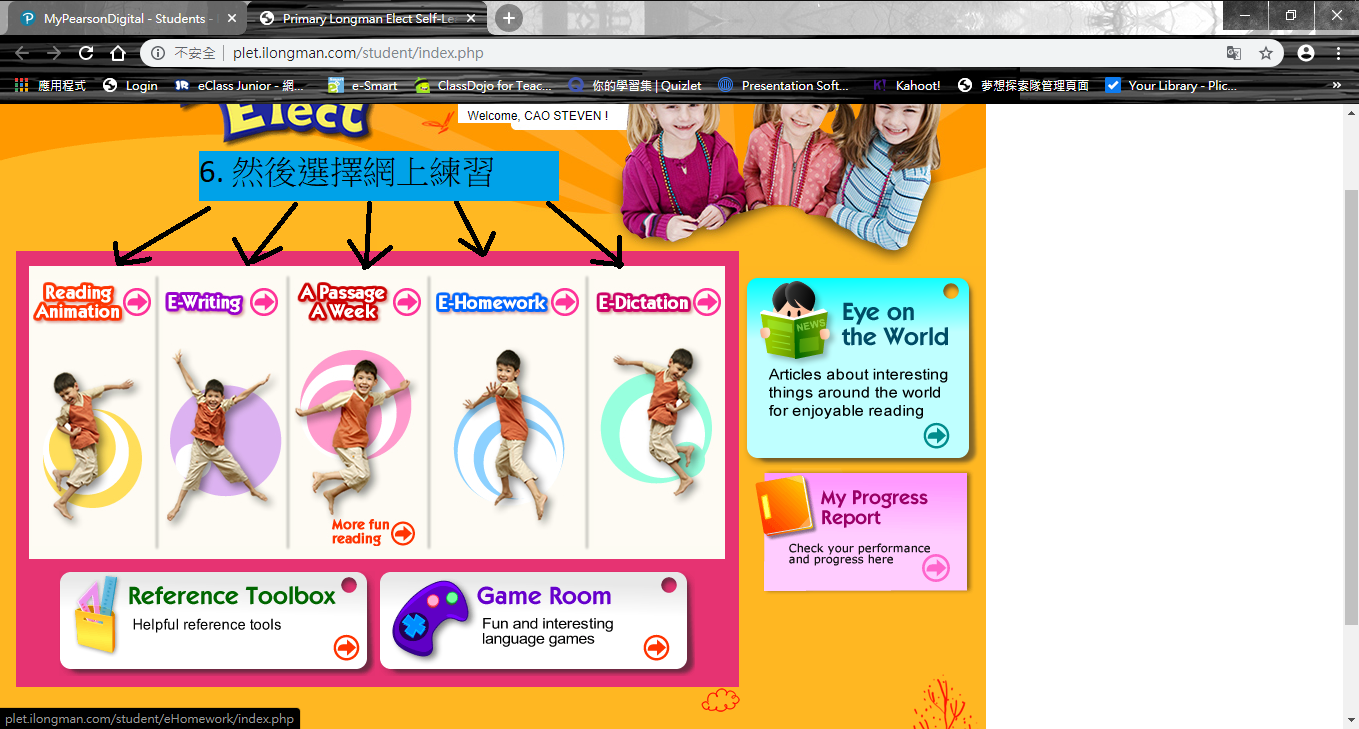
6. Select "Online Practice".
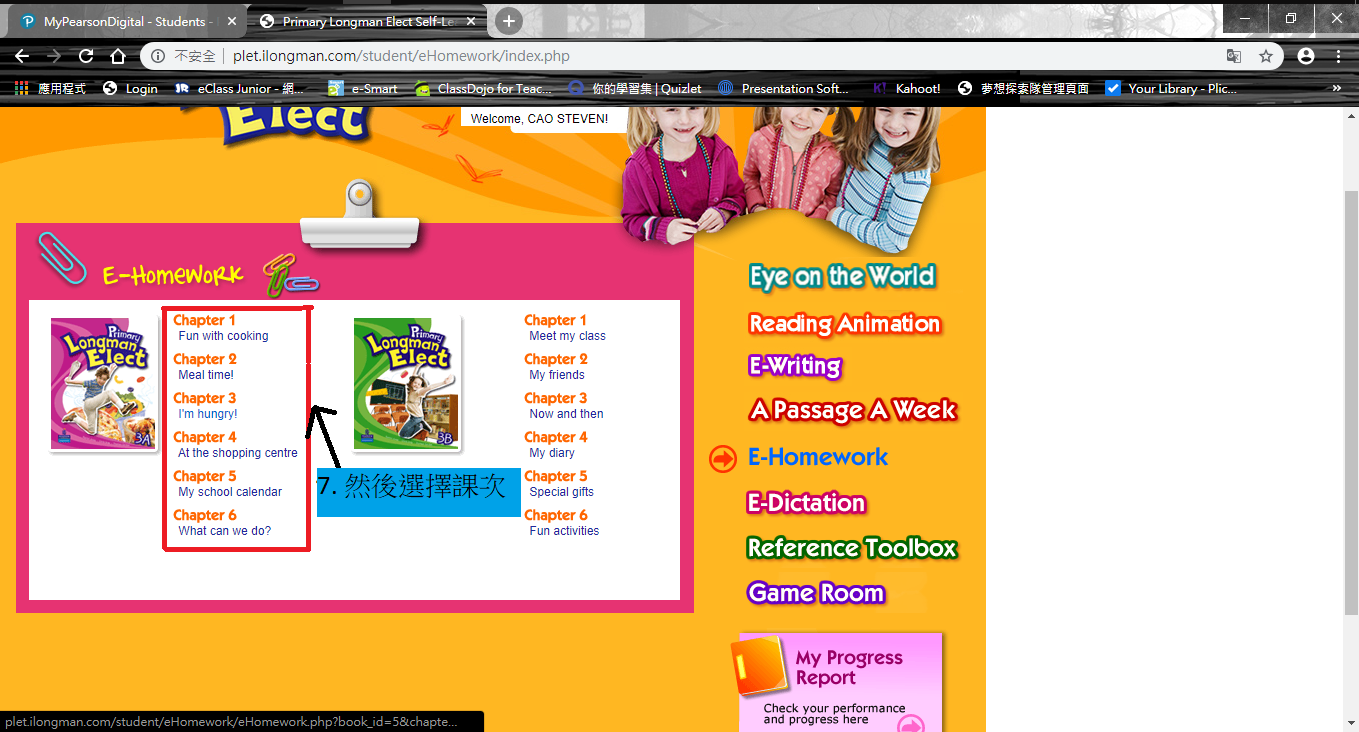
7. Select the assigned Chapter/Lesson.
8. If the practice window is blocked (e.g., by a pop-up blocker), click the icon at the top right corner of your browser.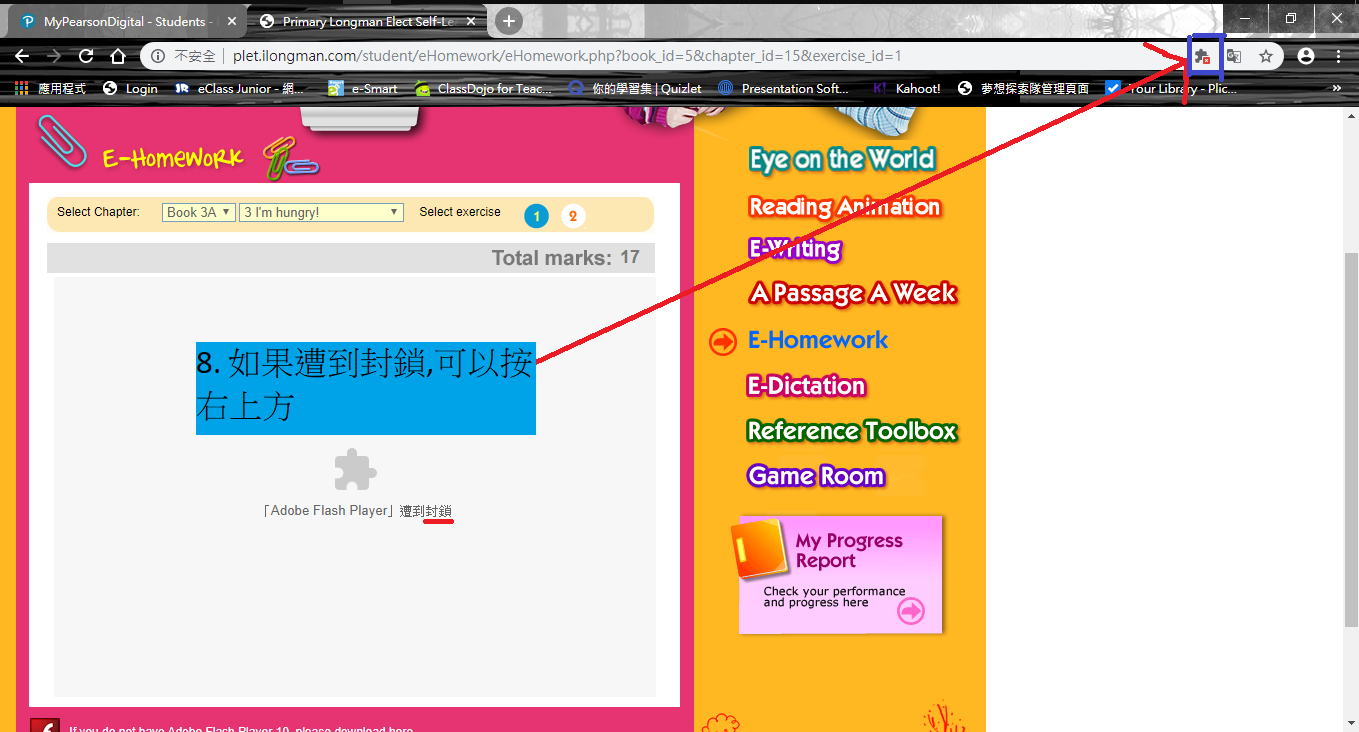
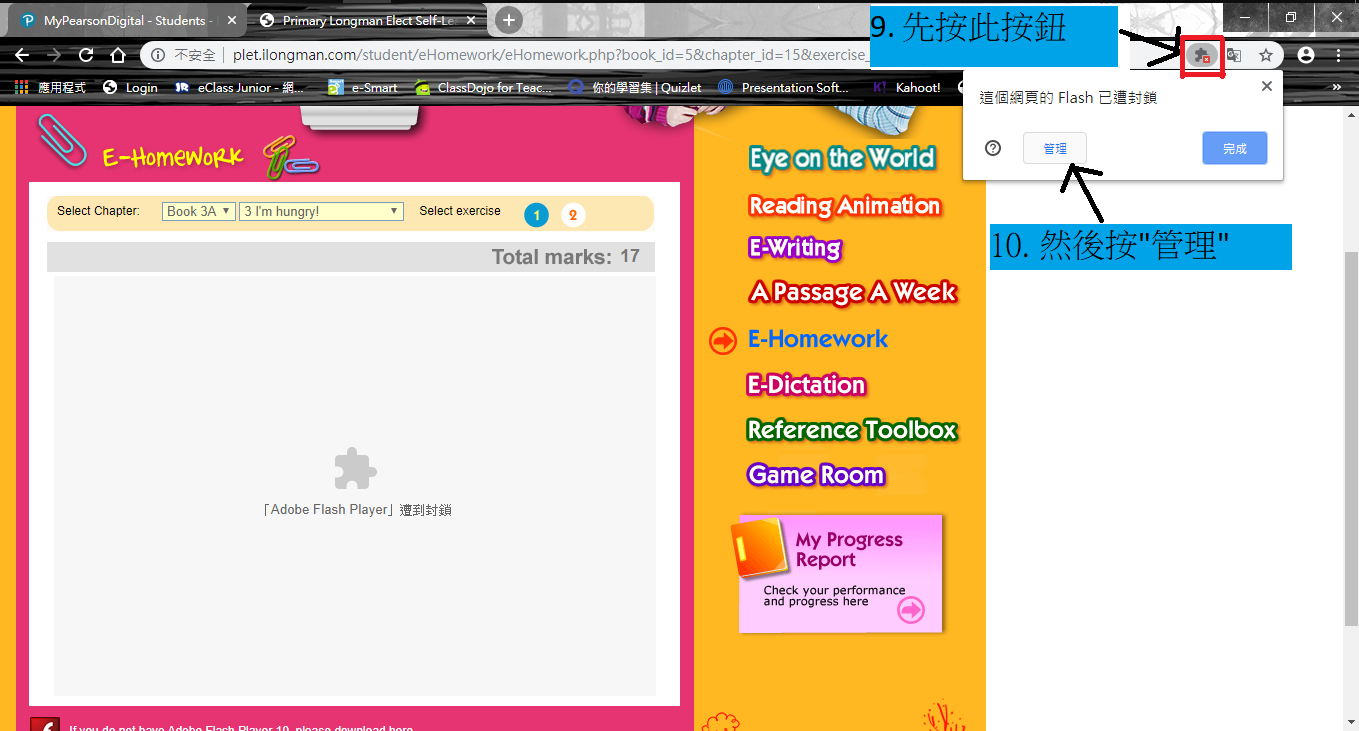
9. Click the button shown in the image, then click "Manage" (管理).
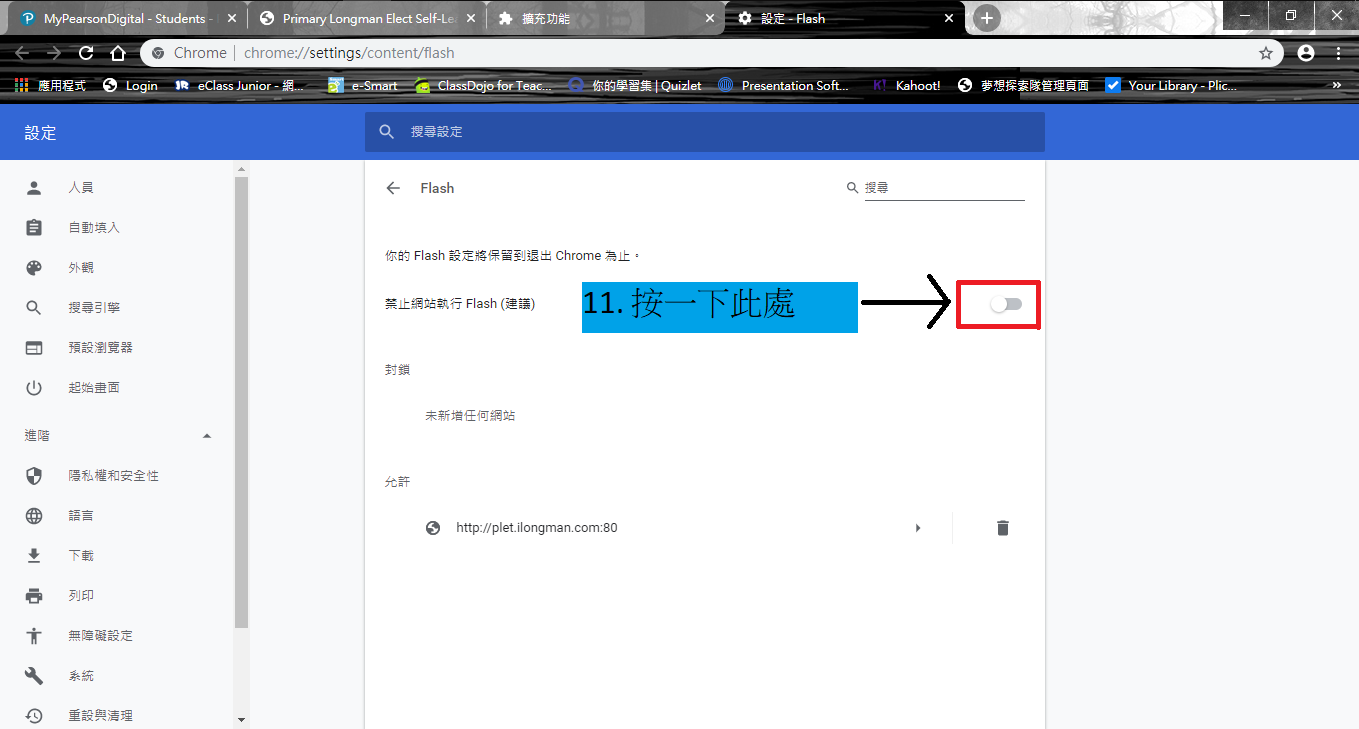
10. Click the toggle switch shown in the image.
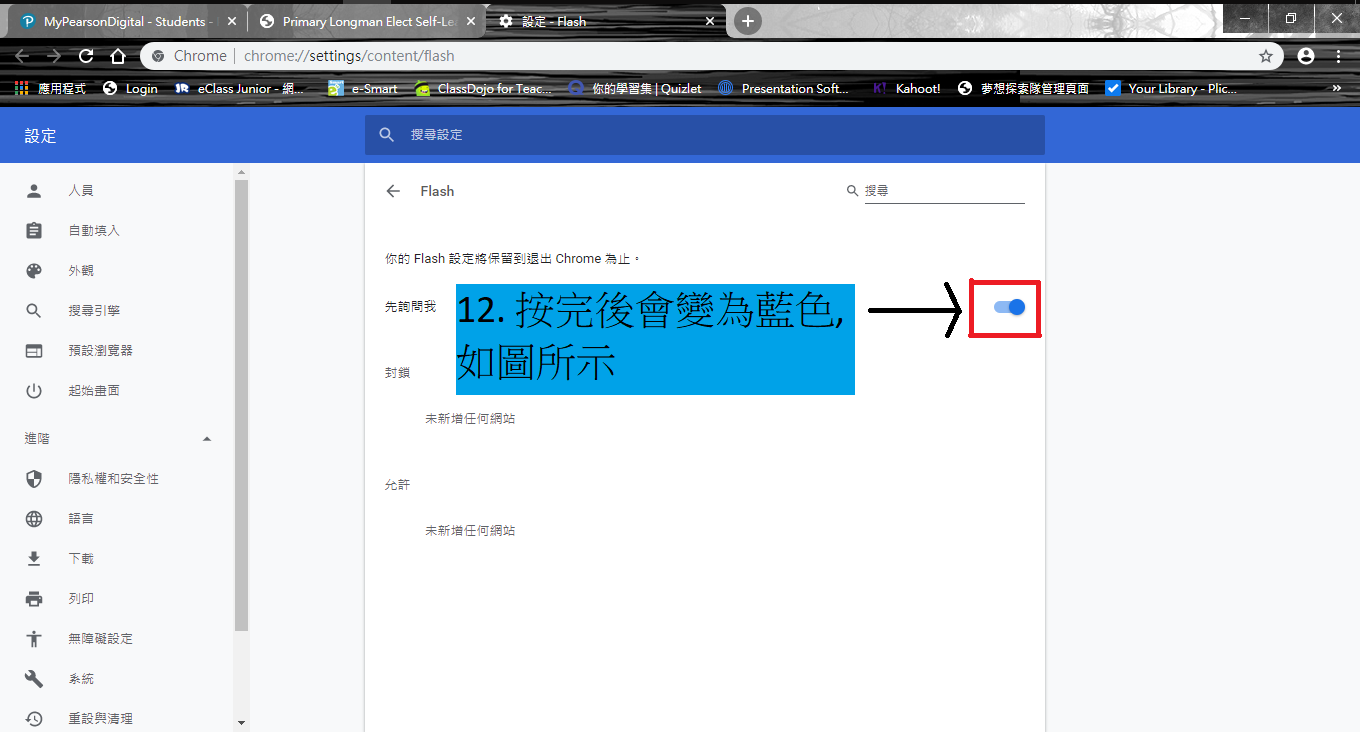
11. The switch will turn blue after being clicked, indicating it is turned on.
12. Return to the Pearson website tab.
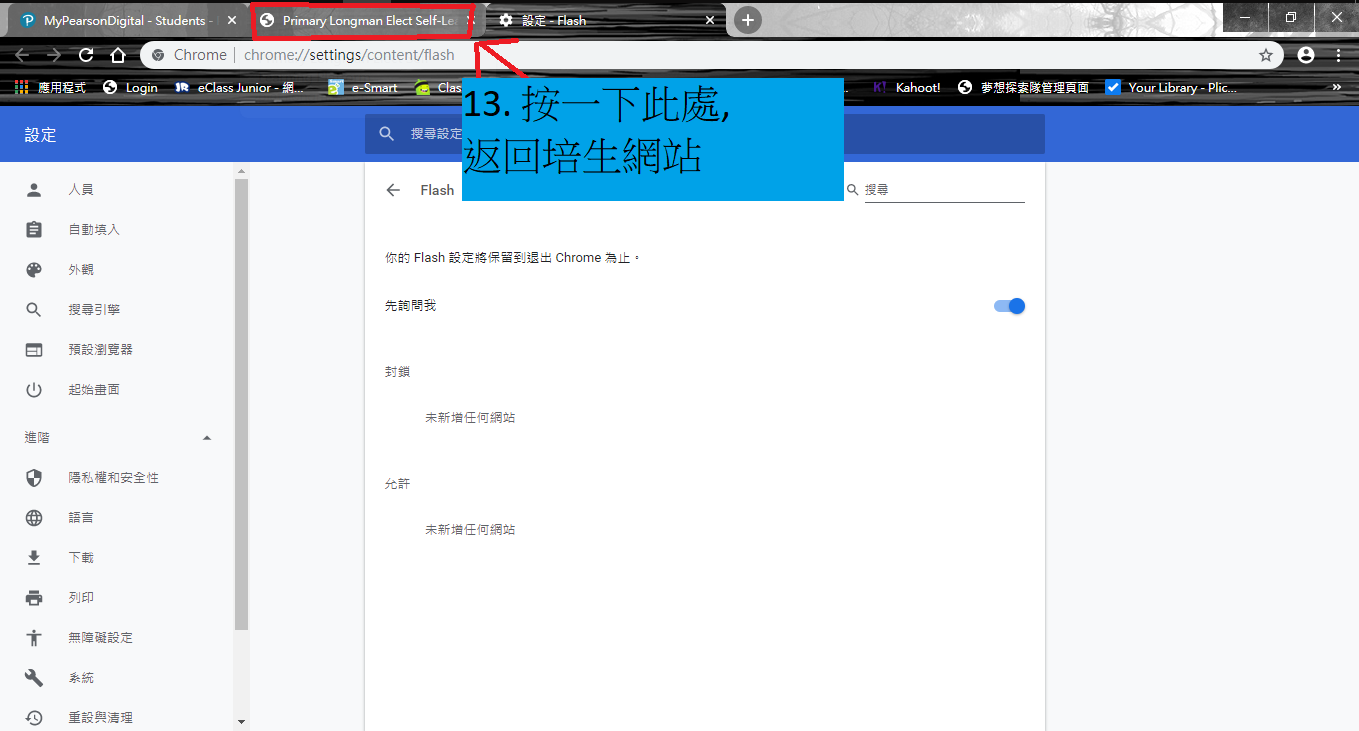
13. Click on the icon as shown in the image.
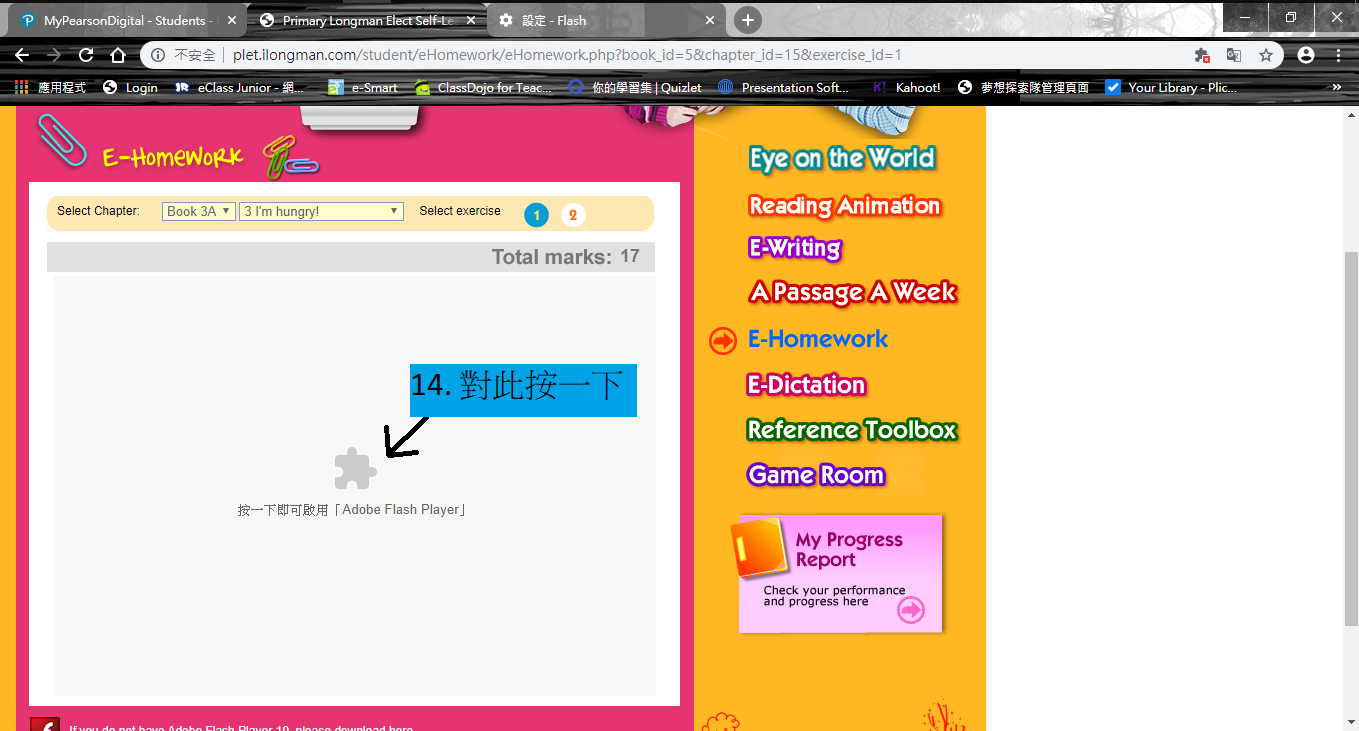
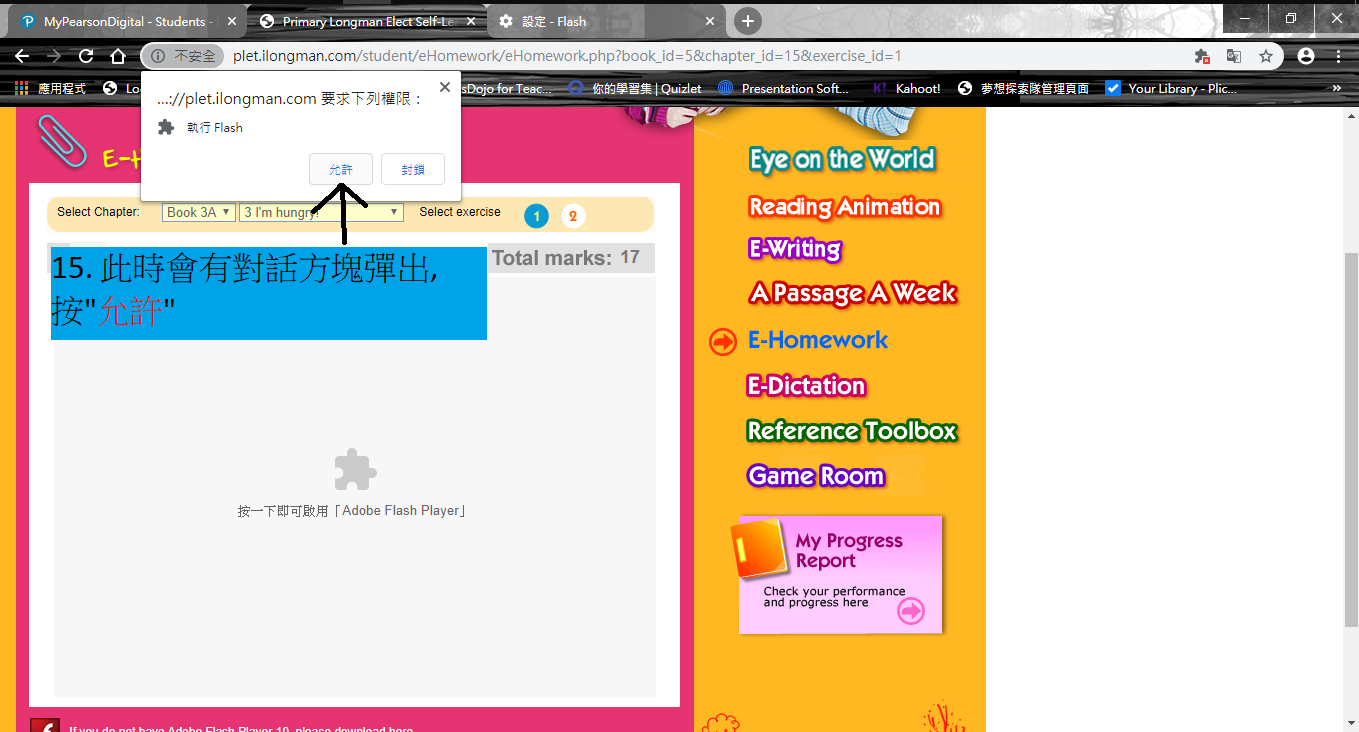
14. A dialog box will pop up; click "Allow" (允許).
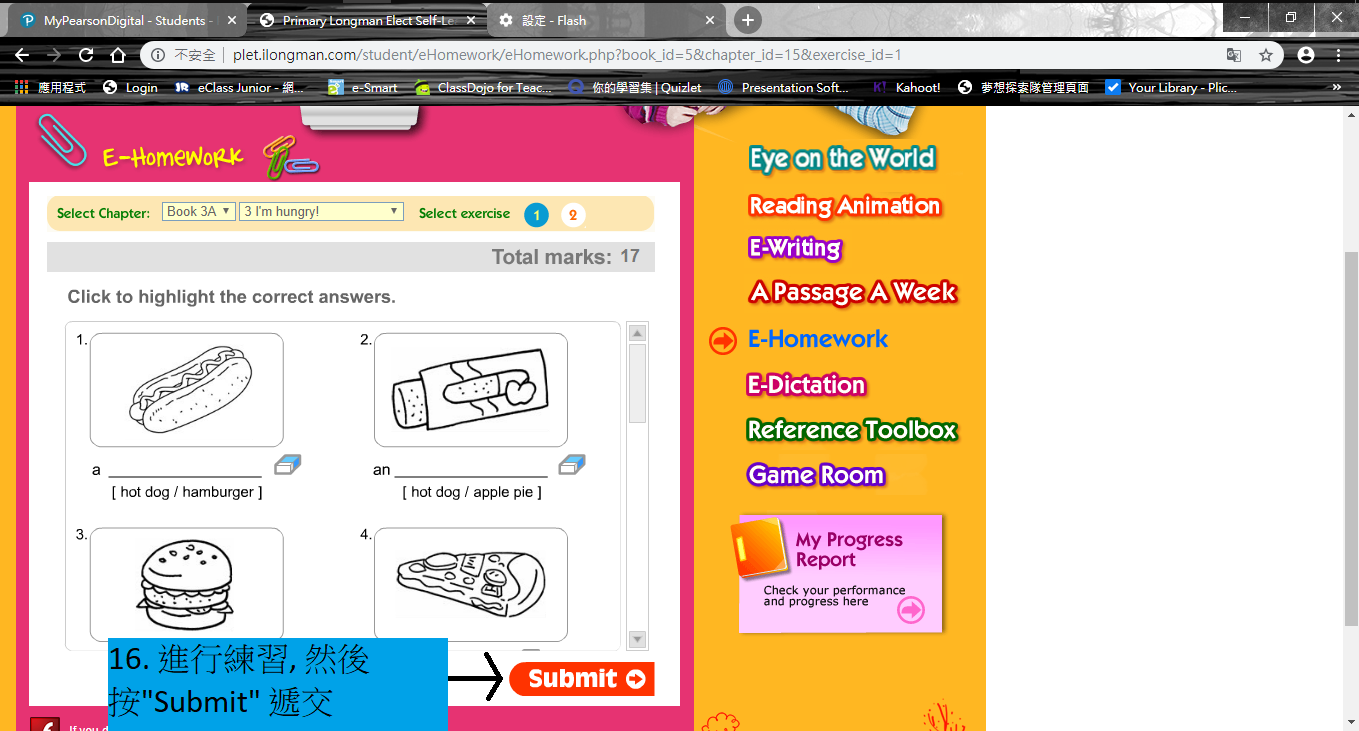
15. Complete the practice exercise, and then click "Submit" to hand in your work.